
If you’re searching for the best graphics settings for fps, you’re likely tired of stutters, frame drops, and losing fights because your game can’t keep up. Whether you’re grinding ranked, scrimming with a team, or pushing for higher K/D ratios, optimized settings can be the difference between reacting first and watching the kill cam.
This guide is built to help you squeeze every possible frame out of your system without sacrificing the visual clarity you need to track enemies and control recoil. We break down which settings actually impact performance, which ones are safe to lower, and how to balance smooth gameplay with competitive visibility.
Our recommendations are based on hands-on testing across multiple hardware setups, competitive gameplay analysis, and performance benchmarking in high-pressure scenarios. By the end of this article, you’ll know exactly how to configure your game for maximum FPS, tighter input response, and a measurable edge in every match.
The Heavy Hitters: Three Settings for an Immediate FPS Boost
If you change only three options today, make it these. They deliver the fastest, most noticeable performance gains—no hardware upgrade required.
-
Display Resolution
Resolution is the number of pixels your GPU renders every frame. More pixels = more work. Dropping from 4K (3840×2160) to 1440p (2560×1440) cuts pixel count by about 44%. Moving from 1440p to 1080p (1920×1080) reduces it by another 44% (NVIDIA performance scaling data). That’s massive. Recommendation: match your monitor’s native resolution for clarity, but if FPS is struggling, lower this first. It’s the quickest path to the best graphics settings for fps (yes, even if it bruises your pride a little). -
Shadow Quality
Shadows are computationally expensive because they require dynamic lighting calculations. Low disables complex shadow filtering, Medium simplifies detail, High improves accuracy, and Ultra adds fine softness and distance rendering. In fast-paced shooters, you won’t notice Ultra’s subtle polish—but you will notice dropped frames. Recommendation: set shadows to Low for competitive games. You’ll gain FPS and often improve enemy visibility (no more hiding in hyper-realistic gloom like it’s a Batman reboot). -
Texture Quality
Textures fill VRAM (Video Random Access Memory), the dedicated memory on your GPU. If VRAM overflows, you get stutters. Rule of thumb: -
8GB+ VRAM: High or Ultra
-
4–6GB VRAM: Medium
-
Under 4GB: Low
Choose accordingly, and your frames—and aim—will thank you.
Fine-Tuning: Balancing Visual Fidelity and Smooth Gameplay
Finding the best graphics settings for fps isn’t about cranking everything to Low and calling it a day. It’s about smart trade-offs. After three months of testing across patches in 2025 (yes, including those “performance improvement” updates that did the opposite), certain patterns stand out.
Anti-Aliasing (AA): This setting smooths jagged edges—those stair-step lines you notice on railings and rooftops. FXAA (Fast Approximate Anti-Aliasing) is lightweight but slightly blurry. MSAA (Multisample Anti-Aliasing) looks cleaner but hits performance harder because it samples geometry multiple times. TAA (Temporal Anti-Aliasing) blends frames over time, offering a balanced look with moderate cost.
Recommendation: TAA is usually the sweet spot. But if you’re chasing every last frame, turning AA off entirely can net a measurable FPS gain for a minor visual downgrade (especially at 1080p).
View Distance / Draw Distance: This controls how far objects render in the world. Contrary to popular belief, it leans heavily on your CPU, not just your GPU (as noted in performance breakdowns by Digital Foundry, 2023).
- Open-world games: Medium/High preserves immersion.
- Competitive arena games: Medium is often enough and frees CPU resources.
Post-Processing Effects: These are cinematic overlays added after rendering—Motion Blur, Bloom, Depth of Field. They look dramatic (very Hollywood), but they cost frames.
Recommendation:
- Turn Motion Blur OFF.
- Turn Depth of Field OFF.
- Keep Bloom on Low.
Some argue these effects enhance realism. Fair. But clarity wins fights. If you want crisp targets instead of JJ Abrams lens flare, prioritize performance. For deeper benchmarks, see https://www.techspot.com/article/graphics-performance-guide/.
Advanced Tweaks: Squeezing Out Every Last Frame
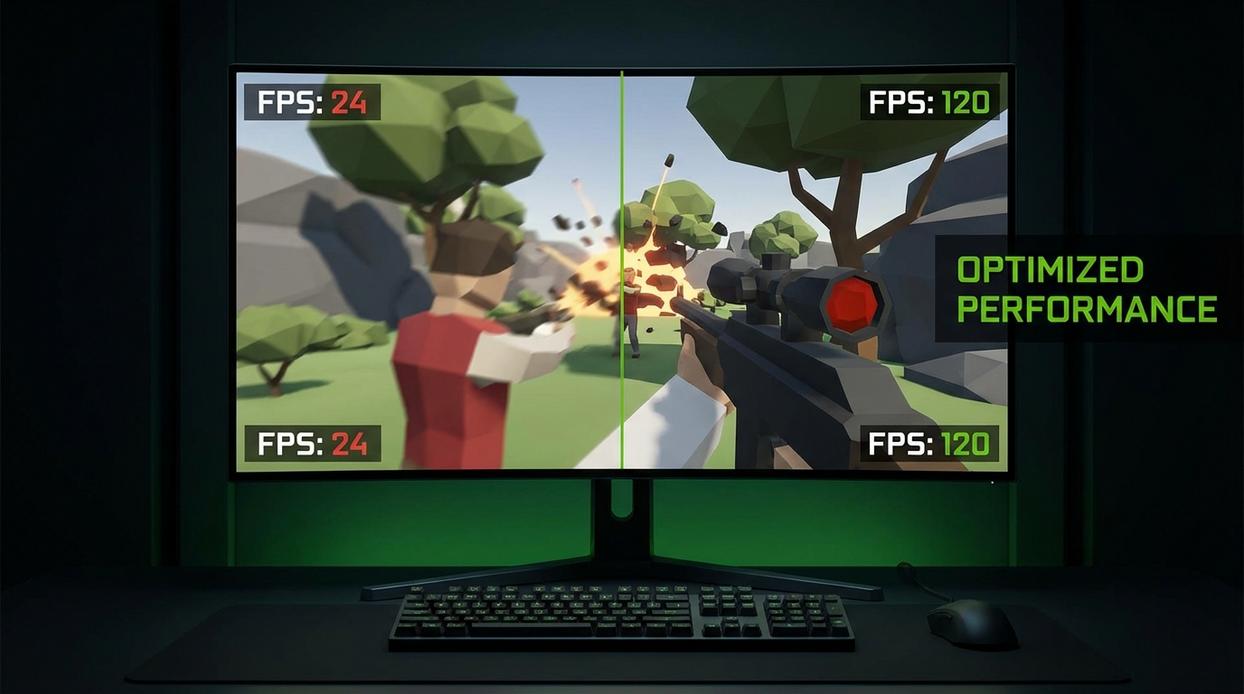
If you’re chasing the best graphics settings for fps, this is where the real gains hide. These options look stunning—but they quietly drain performance.
1. Ambient Occlusion (SSAO / HBAO)
Ambient Occlusion adds subtle contact shadows where objects meet, creating depth and realism. SSAO (Screen Space Ambient Occlusion) and HBAO (Horizon-Based Ambient Occlusion) simulate how light is blocked in tight spaces. It looks great under cars, around rocks, and in corners—but it’s GPU-intensive. In competitive play, those extra shadows won’t win you fights.
Recommendation: Turn this Off first. Expect a 5–10% FPS boost instantly.
2. Volumetric Effects (Fog, Clouds, Light Shafts)
These effects create realistic atmosphere—think dramatic “god rays” in a forest scene. Beautiful? Absolutely. Efficient? Not even close. Volumetrics demand heavy real-time calculations, especially in large maps.
Recommendation: Set to Low or Off for a massive uplift in busy scenes.
3. Ray Tracing
Ray tracing simulates realistic lighting and reflections by tracking light paths. It’s the gold standard for visuals—and a notorious performance killer.
Recommendation: Unless you own a high-end RTX 40-series GPU, keep it Off.
Pro tip: Pair these changes with solid network optimization tips to lower ping and packet loss to maximize smoothness overall.
Beyond the Game: System-Level Optimizations
Chasing higher FPS isn’t only about in-game sliders. If you ignore system-level tweaks, you’re leaving performance on the table (and yes, I’ve learned that the hard way).
Update Your Graphics Drivers: New releases often include optimizations for the latest titles. I always check NVIDIA GeForce Experience or AMD Adrenalin before tweaking best graphics settings for fps.
Close Background Applications: Browsers and launchers quietly eat CPU and RAM. Use Task Manager to shut them down.
Windows Game Mode: Keep it ON in Settings; it prioritizes gaming processes.
| Tweak | Impact |
| Drivers | Stability |
| Apps | More FPS |
Quick wins.
Lock In Smoother Gameplay Starting Today
You came here to figure out how to eliminate lag, boost responsiveness, and finally gain the competitive edge you’ve been missing. Now you understand how dialing in the best graphics settings for fps can dramatically improve frame rates, reduce input delay, and give you smoother, more consistent performance in every match.
Dropped frames, stuttering fights, and split-second losses are frustrating — especially when you know your skill isn’t the problem. The right optimizations turn your setup into a competitive advantage instead of a bottleneck.
Now it’s time to act. Apply these settings, test your performance in real matches, and fine-tune based on your system’s strengths. If you want even deeper optimization breakdowns, pro-level tweaks, and daily performance hacks trusted by competitive players, dive into our latest guides and start upgrading your gameplay today. Your smoother, faster wins start now.
 Founder & Chief Visionary Officer
Drevara Dornhanna is the kind of writer who genuinely cannot publish something without checking it twice. Maybe three times. They came to expert breakdowns through years of hands-on work rather than theory, which means the things they writes about — Expert Breakdowns, Honzava Competitive Mechanics, Frontline Gaming Buzz, among other areas — are things they has actually tested, questioned, and revised opinions on more than once.
That shows in the work. Drevara's pieces tend to go a level deeper than most. Not in a way that becomes unreadable, but in a way that makes you realize you'd been missing something important. They has a habit of finding the detail that everybody else glosses over and making it the center of the story — which sounds simple, but takes a rare combination of curiosity and patience to pull off consistently. The writing never feels rushed. It feels like someone who sat with the subject long enough to actually understand it.
Outside of specific topics, what Drevara cares about most is whether the reader walks away with something useful. Not impressed. Not entertained. Useful. That's a harder bar to clear than it sounds, and they clears it more often than not — which is why readers tend to remember Drevara's articles long after they've forgotten the headline.
Founder & Chief Visionary Officer
Drevara Dornhanna is the kind of writer who genuinely cannot publish something without checking it twice. Maybe three times. They came to expert breakdowns through years of hands-on work rather than theory, which means the things they writes about — Expert Breakdowns, Honzava Competitive Mechanics, Frontline Gaming Buzz, among other areas — are things they has actually tested, questioned, and revised opinions on more than once.
That shows in the work. Drevara's pieces tend to go a level deeper than most. Not in a way that becomes unreadable, but in a way that makes you realize you'd been missing something important. They has a habit of finding the detail that everybody else glosses over and making it the center of the story — which sounds simple, but takes a rare combination of curiosity and patience to pull off consistently. The writing never feels rushed. It feels like someone who sat with the subject long enough to actually understand it.
Outside of specific topics, what Drevara cares about most is whether the reader walks away with something useful. Not impressed. Not entertained. Useful. That's a harder bar to clear than it sounds, and they clears it more often than not — which is why readers tend to remember Drevara's articles long after they've forgotten the headline.