If you’re searching for ways to get lower ping in online games, you’re probably tired of lag spikes, delayed inputs, and losing fights you should have won. In competitive gaming, milliseconds matter. Whether you’re grinding ranked matches or scrimming with a team, unstable connections can hold back your true skill.
This guide is built to help you fix that. We’ll break down what ping actually means, why it fluctuates, and the practical steps you can take today to stabilize and reduce it. From network optimization and hardware tweaks to in-game settings and routing strategies, everything here is focused on real performance gains—not generic advice.
Our insights are grounded in hands-on gameplay testing, competitive mechanics analysis, and daily optimization practices used by serious players. By the end of this article, you’ll understand exactly what’s affecting your connection and how to create a smoother, more responsive gaming experience.
Stop Lagging, Start Winning
Ever lost a ranked match not because your opponent outplayed you, but because your ping spiked at the worst moment? That frustration is universal in competitive gaming. However, lag is rarely random. After years in high-stakes online ladders, I’ve learned a stable connection is built, not wished for.
This guide gives you a step-by-step checklist to diagnose, prioritize, and fix root causes. First, use wired Ethernet; Wi-Fi adds interference. Next, reboot your modem and router. Then, enable QoS to lower ping in online games. Finally, close background apps and update drivers. Follow these optimizations for smoother matches.
The Foundation: Quick Wins Inside Your PC
The Bandwidth Hog Check
First, open Task Manager (Ctrl + Shift + Esc) or Activity Monitor on macOS. Under the Network column, you’ll see which apps are consuming bandwidth. Cloud sync tools, streaming services, or stealthy game downloads often sit there quietly siphoning data (yes, even when you forgot they were open). Close anything non-essential before queuing into a match. Fewer background requests mean more stable routing—and ultimately, lower ping in online games.
Driver Discipline
Next, check your Network Interface Card (NIC) drivers. A driver is the software that lets your operating system communicate with hardware. Outdated versions can throttle throughput or mishandle packet prioritization. Head to Device Manager > Network Adapters, right-click your NIC, and select Update driver. For best results, download directly from the manufacturer’s site. Updated drivers often include latency optimizations and bug fixes (small update, real payoff).
Optimizing Windows for Gaming
Then, enable Windows Game Mode under Settings > Gaming. It prioritizes system resources for active games. For advanced users, disabling Nagle’s Algorithm via the Windows Registry can reduce packet delay by sending data immediately instead of batching it.
Taming Automatic Updates
Finally, pause Windows Update and schedule Steam or launcher downloads outside play hours. Sudden background patches cause mid-game lag spikes—timing matters.
Command Center: Mastering Your Router’s Settings
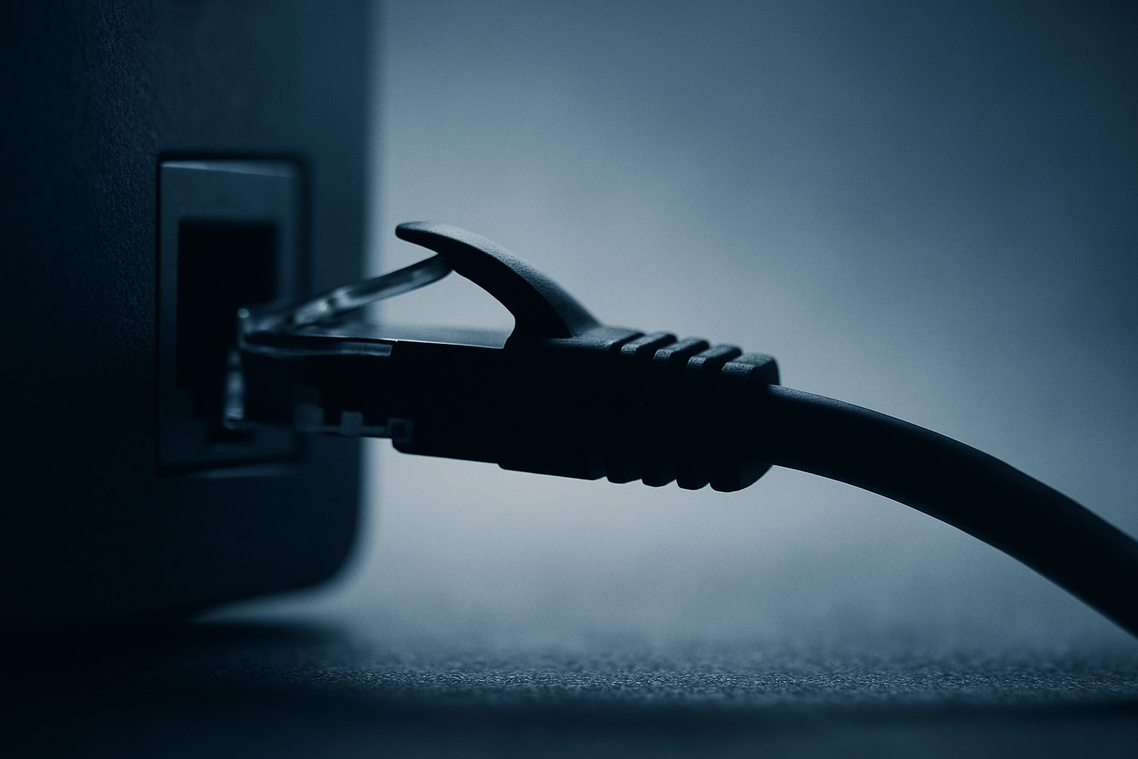
Ever wondered why your aim feels crisp one match and sluggish the next? Before blaming your reflexes, check your router.
Introducing Quality of Service (QoS)
Quality of Service (QoS) is a router feature that prioritizes certain types of internet traffic over others. Think of it as a VIP lane for your gaming data. When someone in your house starts streaming in 4K while you’re mid-ranked match, QoS tells your router, “Game traffic first.”
Most modern routers let you enable QoS in the admin dashboard (usually 192.168.0.1 or 192.168.1.1). You can prioritize a specific device (your PC or console) or even specific applications. The goal? lower ping in online games and fewer lag spikes.
Pro tip: Set your gaming device to highest priority, not just high—especially in busy households.
DNS for Speed
DNS (Domain Name System) translates website names into IP addresses (like your internet’s phonebook). Switching to public DNS servers such as Google’s 8.8.8.8 or Cloudflare’s 1.1.1.1 can reduce the time it takes to locate game servers. Cloudflare claims its DNS is among the fastest globally (Cloudflare, 2023).
Is it magic? No. But shaving milliseconds off server lookups can mean faster connections to matches.
Wi-Fi Channel Congestion
Wi-Fi runs on channels, and crowded channels cause interference. Using a Wi-Fi analyzer app, you can see which channels nearby networks occupy. Switching to a less crowded one often improves stability dramatically (especially in apartments).
Sound familiar—random packet loss at night? Your neighbors’ routers might be the culprit.
A Note on Port Forwarding
Port forwarding directs specific traffic straight to your device. Some games benefit because it ensures open NAT types and smoother matchmaking. Check official game support pages for accurate port lists. It’s advanced—tweak carefully.
And once your network is dialed in, pair it with creating a distraction free setup for peak gaming focus for the ultimate competitive edge.
The Physical Layer: Why Your Hardware Matters Most
You can tweak settings all day, but if your physical connection is weak, everything above it suffers. The physical layer simply means the actual hardware moving your data—cables, routers, adapters. Think of it as the highway your packets drive on. If the road’s cracked, traffic slows.
Ethernet Is King
A wired Ethernet connection is still the gold standard. Typical Wi-Fi latency in a busy home ranges from 15–30 ms, sometimes spiking higher with interference. A direct Ethernet link often sits at 1–5 ms internally, with far fewer jitter spikes (FCC consumer guidance notes wireless interference as a primary cause of instability). Fewer spikes mean smoother hit registration and more consistent frames.
Yes, some argue modern Wi-Fi 6 is “just as good.” In perfect lab conditions? Maybe. In real homes with microwaves, walls, and five streaming devices? Not quite.
If your goal is to lower ping in online games, Ethernet remains the single most reliable upgrade (boring, but brutally effective).
When Wires Won’t Work
Running a 50-foot cable across your hallway isn’t always realistic (roommates tend to object). Alternatives:
| Option | Pros | Cons |
|——–|——|——|
| Powerline | Uses existing electrical wiring; easy setup | Performance depends on circuit quality |
| MoCA | Uses coax TV wiring; very stable, near-Ethernet speeds | Requires coax access |
MoCA often outperforms Powerline because coax is shielded from electrical noise (a detail many guides skip).
Is Your Router the Bottleneck?
Upgrade if:
- It’s over 4–5 years old
- No Wi-Fi 6/6E support
- Dual-core CPU struggles under load
- Lacks Quality of Service (QoS)
Modern routers with stronger processors handle packet prioritization better during peak usage (IEEE 802.11ax standards highlight improved efficiency under congestion).
Cable Quality Matters
Not all Ethernet cables are equal. Use at least Cat 6 for gigabit stability and reduced crosstalk. (Pro tip: avoid flat ultra-thin cables for long runs—they’re convenient, not optimal.)
Hardware isn’t flashy. But it wins games quietly.
The Final Boss: When to Call Your Internet Provider
Before you rage-quit your ISP, gather intel. Run tests on Waveform or Cloudflare to check ping (latency, or delay), jitter (ping inconsistency), and packet loss (missing data in transit). These metrics matter more than raw speed and help you secure lower ping in online games.
When contacting support, speak their language:
- “I’m seeing high packet loss during peak hours.”
- “My bufferbloat score is poor.”
- “Latency spikes exceed 40ms consistently.”
If upload speeds are low, upgrading may help—especially for competitive play. Pro tip: prioritize stable upload over flashy download numbers for smoother matches.
Your connection is not a luxury; it’s the engine in your race car. When latency spikes, it’s like hitting black ice mid-corner—control vanishes and the match stops feeling fair. A stable, low-latency line is your competitive edge, the difference between reacting and guessing. Some argue “good enough” internet works, but championships aren’t won on good enough. The fix isn’t magic; it’s a layered tune-up—from quick software tweaks to smarter router placement, and if needed, hardware upgrades. Start now: use lower ping in online games by grabbing the “Quick Wins.” Bookmark this guide and keep refining your setup for smoother play.
Take Control of Your Competitive Edge
You came here to figure out how to sharpen your gameplay, outplay tougher opponents, and stay ahead of the competition. Now you understand how smart optimization, sharper mechanics, and strategic adjustments can transform your results.
The biggest frustration for competitive players isn’t lack of effort — it’s feeling held back by inconsistent performance, slow reactions, or technical issues that cost crucial moments. Whether it’s refining your rotations, mastering advanced mechanics, or achieving lower ping in online games, every small upgrade compounds into a serious advantage.
Now it’s your move.
Start applying one optimization tip today. Adjust your settings, refine your strategy, and track your improvements match by match. If you’re serious about climbing ranks and dominating your lobbies, stay plugged into our daily guides and competitive breakdowns — trusted by thousands of dedicated players who want real, practical results.
Don’t just play more. Play smarter. Take action now and turn your grind into measurable wins.
 Founder & Chief Visionary Officer
Drevara Dornhanna is the kind of writer who genuinely cannot publish something without checking it twice. Maybe three times. They came to expert breakdowns through years of hands-on work rather than theory, which means the things they writes about — Expert Breakdowns, Honzava Competitive Mechanics, Frontline Gaming Buzz, among other areas — are things they has actually tested, questioned, and revised opinions on more than once.
That shows in the work. Drevara's pieces tend to go a level deeper than most. Not in a way that becomes unreadable, but in a way that makes you realize you'd been missing something important. They has a habit of finding the detail that everybody else glosses over and making it the center of the story — which sounds simple, but takes a rare combination of curiosity and patience to pull off consistently. The writing never feels rushed. It feels like someone who sat with the subject long enough to actually understand it.
Outside of specific topics, what Drevara cares about most is whether the reader walks away with something useful. Not impressed. Not entertained. Useful. That's a harder bar to clear than it sounds, and they clears it more often than not — which is why readers tend to remember Drevara's articles long after they've forgotten the headline.
Founder & Chief Visionary Officer
Drevara Dornhanna is the kind of writer who genuinely cannot publish something without checking it twice. Maybe three times. They came to expert breakdowns through years of hands-on work rather than theory, which means the things they writes about — Expert Breakdowns, Honzava Competitive Mechanics, Frontline Gaming Buzz, among other areas — are things they has actually tested, questioned, and revised opinions on more than once.
That shows in the work. Drevara's pieces tend to go a level deeper than most. Not in a way that becomes unreadable, but in a way that makes you realize you'd been missing something important. They has a habit of finding the detail that everybody else glosses over and making it the center of the story — which sounds simple, but takes a rare combination of curiosity and patience to pull off consistently. The writing never feels rushed. It feels like someone who sat with the subject long enough to actually understand it.
Outside of specific topics, what Drevara cares about most is whether the reader walks away with something useful. Not impressed. Not entertained. Useful. That's a harder bar to clear than it sounds, and they clears it more often than not — which is why readers tend to remember Drevara's articles long after they've forgotten the headline.