
If you’re searching for ways to reduce input lag gaming, you’re likely tired of split-second delays costing you matches, rank, and consistency. In competitive titles, even a few milliseconds can mean the difference between landing the shot or watching the kill cam. This guide is built specifically to help you understand what input lag actually is, what causes it, and—most importantly—how to minimize it with practical, proven adjustments.
We break down the technical factors behind display latency, controller and mouse response times, system settings, frame pacing, and network variables that affect real-time performance. Every recommendation is grounded in performance testing, competitive gameplay analysis, and hardware optimization research used by serious players.
Whether you’re grinding ranked, preparing for tournaments, or just aiming for smoother gameplay, this article will walk you through clear, actionable steps to tighten your setup and gain a measurable competitive edge.
The Unseen Enemy: Why Input Delay Is Costing You Wins
You click. Your crosshair moves a split second later. That tiny gap? That’s input delay.
Input delay (also called input lag) is the time between your physical action—like clicking a mouse—and the action appearing on screen. It’s not the same as network lag (ping), which is the delay between your PC and the game server. Even offline, input delay exists.
Research from NVIDIA shows system latency differences of 20–50 milliseconds can measurably affect aim performance in FPS titles (see https://www.nvidia.com/en-us/geforce/news/reflex-low-latency-platform/).
If you want to reduce input lag gaming, start here:
- Optimize hardware settings
- Adjust in-game latency options
- Eliminate background processes
Milliseconds matter—and the scoreboard proves it.
Your Gear Matters: Hardware Tweaks for Instant Response
If you want instant response, start with your display. A high refresh rate monitor (144Hz or higher) is the single biggest upgrade you can make. Refresh rate means how many times your screen updates per second. At 60Hz, you see 60 frames. At 144Hz, you see 144. That’s more visual information and smoother motion (yes, you’ll feel it immediately). Pair it with DisplayPort instead of HDMI when possible, since DisplayPort typically supports higher refresh rates and adaptive sync more reliably. Then enable G-Sync or FreeSync in your GPU control panel—don’t just assume it’s on.
Next: peripherals.
- Set your mouse polling rate to 1000Hz or higher. Polling rate is how often your mouse reports movement to your PC. Higher means less delay.
- Don’t fear modern wireless. Tech like Lightspeed rivals wired latency in real-world tests (RTINGS, NVIDIA data). The old “wired is always faster” argument is outdated.
- Use wired controllers. Bluetooth adds measurable delay. Plugging in via USB eliminates that extra step.
Some pro controllers are engineered with reduced input processing, shaving off extra milliseconds. In competitive matches, that can decide gunfights.
Finally, cables and ports matter. Use high-quality cables and plug devices directly into your motherboard’s rear USB ports. Front-panel connectors and hubs can introduce minor latency or instability.
For a deeper breakdown on reduce input lag gaming, check this practical guide: performance tuning basics.
Pro tip: After every hardware change, test in a training range and adjust sensitivity slightly—higher refresh can make your aim feel faster.
Taming Your OS: System-Level Optimizations for Peak Performance
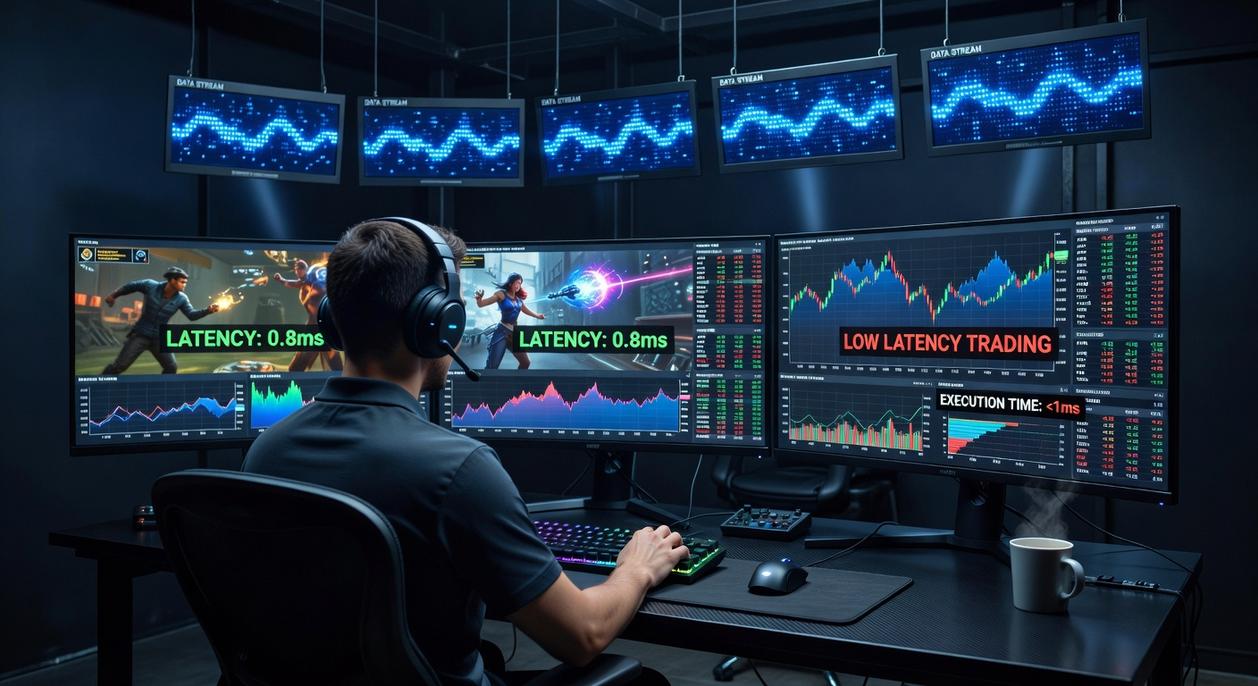
If your hardware is solid but your gameplay still feels inconsistent, your operating system might be the bottleneck. Let’s compare DEFAULT SETTINGS vs OPTIMIZED SETTINGS so you can see what actually changes.
Windows Settings: Game Mode & HAGS
Game Mode ON vs OFF
With Game Mode enabled, Windows prioritizes system resources toward your active game instead of background tasks. OFF? Updates and background services compete for CPU cycles (not ideal mid-match).
Hardware-Accelerated GPU Scheduling (HAGS) ON vs OFF
HAGS shifts GPU scheduling from the CPU to the GPU itself. ON can reduce latency and smooth frame pacing on supported GPUs. OFF may be more stable on older systems. Test both—performance gains depend on your driver and GPU model.
Power Plans: Balanced vs High Performance
Balanced Plan throttles CPU frequency to save energy.
High Performance or Ultimate Performance keeps clocks higher and more consistent. That stability matters when milliseconds decide fights. YES, power draw increases—but so does responsiveness.
Debloating & Overlays
More layers = more latency.
Disable non-essential extras like:
- Discord overlay
- Xbox Game Bar
- NVIDIA GeForce Experience overlay
Each adds a rendering hook between the game and your display. Removing them can help reduce input lag gaming without touching hardware.
Mouse Properties: Raw Input vs Enhanced Precision
“Enhance pointer precision” = Windows mouse acceleration.
ON adjusts sensitivity based on movement speed.
OFF delivers consistent 1:1 tracking.
Competitive players almost universally choose OFF. Muscle memory thrives on predictability.
SMALL TWEAKS. BIG DIFFERENCE. Optimize the OS, and your hardware can finally perform at its peak.
Unlocking Your GPU: Essential Driver Settings for Minimum Lag
Most guides tell you to “update your drivers” and call it a day. That’s surface-level advice. If you want measurable input delay gains, you need to adjust the right settings.
NVIDIA Control Panel Deep Dive
Focus on these three:
- Low Latency Mode → Ultra: This limits the number of pre-rendered frames (frames queued before display), cutting delay between mouse movement and on-screen action.
- Power Management Mode → Prefer Maximum Performance: Prevents GPU downclocking mid-match (yes, that tiny dip can cost a duel).
- Vertical Sync → Force Off: V-Sync eliminates screen tearing but adds latency by syncing frames to monitor refresh.
Pro tip: Pair this with the in-game cap just below your monitor’s refresh rate for smoother frame pacing.
AMD Radeon Software Equivalents
Enable Radeon Anti-Lag to dynamically reduce CPU-GPU queue depth. Also disable Radeon Chill and Enhanced Sync if your goal is pure responsiveness. These small toggles can significantly reduce input lag gaming scenarios where milliseconds decide outcomes.
Clean Driver Installation
Driver conflicts quietly introduce latency. Use Display Driver Uninstaller (DDU) in Safe Mode to wipe old files before reinstalling fresh drivers.
| Setting | NVIDIA | AMD |
|———-|———-|———-|
| Input Queue Control | Low Latency Mode (Ultra) | Radeon Anti-Lag |
| Power Stability | Prefer Max Performance | Disable Chill |
| Sync Control | V-Sync Off | Enhanced Sync Off |
For deeper performance balancing, review best graphics settings for high fps without sacrificing clarity.
Let’s start with the setting that causes the most quiet rage: Display Mode. If you’re serious about shaving milliseconds, Exclusive Fullscreen beats Borderless or Windowed almost every time. It gives the game direct control over your GPU, cutting background interference and lowering latency. Borderless might feel convenient (alt-tabbing is nice), but convenience costs responsiveness.
Next frustration: V-Sync. Turn it OFF in-game. Yes, screen tearing is ugly. But V-Sync queues frames and adds noticeable input lag, which is the last thing you want in competitive matches. Use a driver-level or in-game frame limiter instead.
Frame rate caps are your secret weapon. Cap FPS slightly below your monitor’s refresh rate—141 on a 144Hz panel—to prevent tearing without V-Sync’s delay. It stabilizes frame pacing and helps reduce input lag gaming sessions suffer from when frames spike wildly.
Enable NVIDIA Reflex or AMD FidelityFX whenever available. They cut system latency at the source directly.
Input delay is latency between your action and on-screen response—a solvable killer. A layered plan to reduce input lag gaming spans hardware, software, and settings.
| Layer | Feature | Benefit |
| Hardware | 240Hz monitor | Faster display |
| Settings | Latency mode | Faster inputs |
Level Up Without the Lag
You came here because input delay is costing you wins, reactions, and confidence in clutch moments. Now you understand what causes it, how it affects your mechanics, and the exact adjustments that can sharpen your response time instantly.
Lag isn’t just a technical annoyance — it’s the difference between landing the shot and watching the replay. Every millisecond matters when you’re competing, climbing ranked, or refining your mechanics. When your setup works with you instead of against you, your reactions feel natural, your movement feels tighter, and your performance becomes consistent.
The next step is simple: apply what you’ve learned today. Optimize your settings, upgrade weak hardware links, and consistently test your setup to reduce input lag gaming performance issues for good.
If you’re serious about smoother gameplay, faster reactions, and a competitive edge, don’t stop here. Explore more optimization guides, competitive breakdowns, and daily performance hacks designed to eliminate delay and maximize responsiveness. Thousands of competitive players rely on proven strategies like these to gain their edge.
Your opponents won’t wait — so tighten your setup, act now, and start playing at the speed you’re truly capable of.
 Founder & Chief Visionary Officer
Drevara Dornhanna is the kind of writer who genuinely cannot publish something without checking it twice. Maybe three times. They came to expert breakdowns through years of hands-on work rather than theory, which means the things they writes about — Expert Breakdowns, Honzava Competitive Mechanics, Frontline Gaming Buzz, among other areas — are things they has actually tested, questioned, and revised opinions on more than once.
That shows in the work. Drevara's pieces tend to go a level deeper than most. Not in a way that becomes unreadable, but in a way that makes you realize you'd been missing something important. They has a habit of finding the detail that everybody else glosses over and making it the center of the story — which sounds simple, but takes a rare combination of curiosity and patience to pull off consistently. The writing never feels rushed. It feels like someone who sat with the subject long enough to actually understand it.
Outside of specific topics, what Drevara cares about most is whether the reader walks away with something useful. Not impressed. Not entertained. Useful. That's a harder bar to clear than it sounds, and they clears it more often than not — which is why readers tend to remember Drevara's articles long after they've forgotten the headline.
Founder & Chief Visionary Officer
Drevara Dornhanna is the kind of writer who genuinely cannot publish something without checking it twice. Maybe three times. They came to expert breakdowns through years of hands-on work rather than theory, which means the things they writes about — Expert Breakdowns, Honzava Competitive Mechanics, Frontline Gaming Buzz, among other areas — are things they has actually tested, questioned, and revised opinions on more than once.
That shows in the work. Drevara's pieces tend to go a level deeper than most. Not in a way that becomes unreadable, but in a way that makes you realize you'd been missing something important. They has a habit of finding the detail that everybody else glosses over and making it the center of the story — which sounds simple, but takes a rare combination of curiosity and patience to pull off consistently. The writing never feels rushed. It feels like someone who sat with the subject long enough to actually understand it.
Outside of specific topics, what Drevara cares about most is whether the reader walks away with something useful. Not impressed. Not entertained. Useful. That's a harder bar to clear than it sounds, and they clears it more often than not — which is why readers tend to remember Drevara's articles long after they've forgotten the headline.